


Info

MetroX Pro 3D Scanner
Blue Light Scanning Breakthrough

Volumetric Accuracy
0.02 mm + 0.04 mm × L (m)

Blue Multi-line Laser
Full-field Blue Light

4 Scanning Modes

Fast Scans Up to 7 Million Points/s


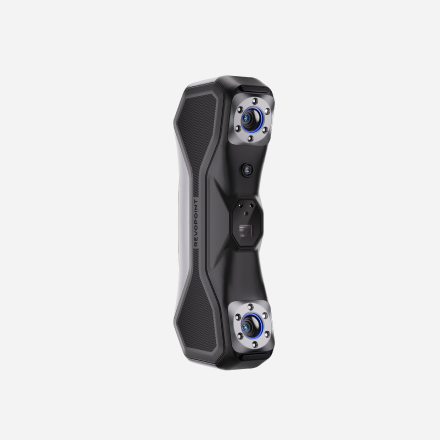
MetroX 3D Scanner
Blue Light Scanning Breakthrough
Metrology-grade
Precision Up to 0.01 mm
Blue Multi-line Laser
Full-field Blue Light
Fast Scans up to 7 Million Points/s

Software

 Revopedia


Video
Revopoint MetroX 3D Scanner | Auto Turntable Scanning Tutorial
Revopoint MetroX 3D Scanner Tutorial: How to 3D Scan Narrow Objects
Revopoint MetroX 3D Scanner: Tips for New Users
Revopoint New Accessory: Marker Tape Introduction and Usage
Which 3D Scanner is Right for You? | MetroX Series vs MetroY Series
FAQ
What's the difference between MetroX and MetroX Pro?
(1) Accuracy: MetroX's volumetric accuracy is 0.025 mm + 0.05 mm × L (m), while MetroX Pro's is 20% better at 0.02 mm + 0.04 mm × L (m).
(2) Scanning Modes: MetroX has 14 cross lines and 7 parallel laser lines, while MetroX Pro has 30 cross lines and 15 parallel laser lines. Both models share the same Full-field and Auto Turntable modes.
(3) Scanning Speed: MetroX's multi-line laser scanning can reach up to 800,000 points per second, whereas MetroX Pro can scan up to 2,000,000 points per second.
What are MetroX’s PC requirements? Do I need a powerful computer to use MetroX?
MetroX Minimum PC Requirements
macOs
CPU : M1Pro / Max / UItra
RAM ≥ 16 GB
Windows
CPU : Intel i7 13th Gen or AMD Ryzen7 5800
RAM ≥ 32 GB
GPU: NVIDIA GeForce RTX 3060 (8 GB)
MetroX Recommended PC Requirements
macOs
CPU: M2 Pro / Max / Ultra, M3 Pro / Max / Ultra
RAM ≥ 24 GB
Windows
CPU: Intel i9 12th Gen or better
RAM ≥ 64 GB
GPU: NVIDIA RTX 4060 (8 GB) or better
MetroX Pro Minimum PC Requirements
macOs
CPU: M2 Pro
RAM ≥ 16 GB
Windows
CPU: Intel i7 13th Gen or AMD Ryzen 7 5800
RAM ≥ 32 GB
GPU: NVIDIA GeForce RTX 3060 (8 GB)
MetroX Pro Recommended PC Requirements
macOs
CPU: M4 Pro or better
RAM ≥ 24 GB
Windows
CPU: Intel i9 12th Gen or better
RAM ≥ 64 GB
GPU: NVIDIA RTX 4060 (8 GB) or better
How do I use Auto Turntable mode?
Attach the scanner cradle to the tripod on a stable surface. Place the scanner in the cradle and connect it to your PC. Start Revo Scan MetroX, set up the Dual-axis Turntable, and connect via Bluetooth in Revo Scan. Choose Feature or Marker Scan and select Auto Turntable mode in scan settings. For details, check the Auto Turntable section of the manual.
Does Revo Metro need internet access to work?
No, it doesn’t need to be connected to an internet-capable network to scan and edit your models. However, you need access to the internet for software updates and file transfers.
What formats can Revo Metro export?
Revo Metro can export your models in PLY, OBJ, STL, ASC, 3MF, GLTF, and FBX for compatibility with most 3D modeling, slicer, and CAD software.
Point Cloud: PLY, OBJ, ASC
Mesh: PLY, OBJ, STL, FBX, GLTF, 3MF
Texture: PLY, OBJ, FBX, GLTF
Do I need to use markers?How do I use markers in MetroX scans?
Markers are necessary for laser scanning modes but are optional in structured light scanning, especially for detailed objects. However, using markers generally results in more stable alignment (stitching).
1. Place markers 6 - 7 cm apart. If the object is too small to place markers on, use the Dual-axis Turntable or Marker Block Kit or place markers around it. Avoid using soft pads or cloths with markers.
2. Don't use too many markers, but ensure that at least 5 markers are placed irregularly per scanned frame.
3. Try to place more markers at the key locations, such as the edges, grooves, and other complex surfaces.
4. Ensure there is sufficient marker coverage before starting the scan, and none of the markers are covered.
5. Ensure the markers are securely stuck and have no lifted edges.
6. Avoid markers on curved surfaces to prevent deformation.
7. Don't use markers under direct sunlight, as the reflective light will affect the scan results.
8. Repeated use of sticky markers is not advised, as their adhesive weakens and can shift during scans, disrupting tracking.
9. For scans with high accuracy requirements, it's recommended to use markers with an inner diameter of 6 mm. Note: Mixing different sizes of markers may affect the scan's accuracy.
Can I switch the scanning modes during a scan?
Yes. In the same tracking mode (Marker Tracking or Feature Tracking), you can pause the scan, switch to a different mode, and resume scanning. You can also obtain data from other parts of an object using various scanning modes and then merge the data with the Revo Scan for MetroX software to achieve a complete and accurate 3D model. This method is particularly suitable for scanning complex or large objects.
Can MetroX series 3D scanner scan black surfaces, metal surfaces, or transparent surfaces?
Yes. The MetroX series can scan black objects directly with Cross Lines and Parallel Lines modes, but for better detail, scanning spray is recommended. It is also necessary when scanning black surfaces in Full Field or Auto Turntable modes, available from the add-on list.
Scanning spray is needed when scanning transparent or specular surfaces. You can get one from the add-on list.
Can the MetroX series 3D scanner safely scan people or animals?
Like most industrial laser scanners, the MetroX series scanner is unsuitable for scanning humans or animals. When using the MetroX series scanner, please avoid looking directly into the laser beam.
The MetroX series scanner is designed to scan small to medium-sized objects. It uses a Class 2M laser projector, which is generally safe for accidental naked-eye viewing but can be hazardous if viewed with optical instruments or for prolonged exposure to the beam. Here are Class 2M Laser Safety Tips:
(1) Avoid looking directly at it at close range.
(2) To avoid retina damage, don’t look directly into the laser beam through optical instruments capable of magnifying it (e.g., telescopes and camera lenses).
(3) To prevent laser reflection, avoid placing reflective surfaces like mirrors or glass in the path of the laser beam.
What is a laser scanner?
A laser scanner captures accurate 3D measurements of objects by projecting laser lines and recording their reflections to create detailed digital models.
What makes the Revopoint MetroX laser scanner different from other laser scanners?
The MetroX combines multi-line blue laser scanning and full-field structured light, offering metrology-grade accuracy up to 0.02 mm and extremely high point capture speeds (up to 7 million points per second). Its flexible scanning modes, compatibility with markers, and user-friendly software set it apart for precise, efficient scanning of small to medium objects.
Contact Us

We’re Here to Help
Speak to an Revopoint expert now. Whether by phone, chat, or email, we’re ready to help you with all of your product questions and issues.


